
Video recording on a Mac has become an essential skill for students, creators, professionals, and everyday users alike. Whether you want to record an online class, create a tutorial, capture gameplay, or save a video call, macOS offers several powerful and user-friendly tools to get the job done. This article explores the different ways to record video on a Mac, the built-in options available, and tips for getting the best results.
Built-In Video Recording Tools on macOS
One of the biggest advantages of using a Mac is that you don’t need to install extra software to start recording. Apple includes reliable tools that are easy to use and surprisingly versatile.
QuickTime Player
QuickTime Player is the most popular built-in option for video recording on Mac. It allows users to record their screen, webcam, or audio with just a few clicks. To start, open QuickTime Player, click File, and choose New Screen Recording or New Movie Recording. From there, you can select your microphone, adjust recording quality, and begin recording.
QuickTime is ideal for simple tasks like recording presentations, tutorials, or short videos. However, it lacks advanced editing features, so users often pair it with other software for post-production.
Screenshot Toolbar (macOS Mojave and Later)
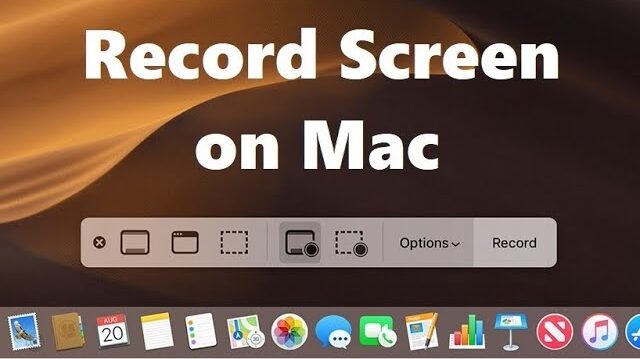
macOS also includes a Screenshot Toolbar, which can be opened by pressing Command + Shift + 5. This tool allows users to record the entire screen or a selected portion of it. You can also choose where recordings are saved and whether a timer is used before recording begins.
This method is especially useful for quick screen captures and requires no additional setup. It’s fast, clean, and perfect for beginners.
Recording with the Built-In Camera
Macs come equipped with a FaceTime HD camera, making it easy to record video directly from your device. Apps like QuickTime Player, Photo Booth, and even third-party video conferencing tools can access the camera for recording.
For best results, make sure you are in a well-lit environment and that your camera lens is clean. External webcams can also be connected for higher video quality, which is useful for content creators and streamers.
Third-Party Video Recording Software
While macOS tools are great for basic recording, many users turn to third-party applications for more control and features.
OBS Studio
OBS Studio is a free and powerful recording and streaming tool. It allows users to record high-quality video, mix audio sources, and capture multiple screens or windows. OBS is popular among gamers, educators, and live streamers because of its flexibility.
ScreenFlow and Camtasia
ScreenFlow and Camtasia are premium tools designed for professional screen recording and video editing. They offer features like annotations, transitions, multi-track editing, and visual effects. These tools are especially helpful for creating polished tutorials, training videos, or marketing content.
Audio Considerations for Video Recording
Audio quality is just as important as video quality. Macs include built-in microphones, but they may pick up background noise. For clearer sound, consider using external microphones or headphones with a mic.
When recording system audio (such as sounds from apps or browsers), you may need additional software, as macOS restricts direct system audio recording. Many third-party tools offer workarounds that make this process easier.
Tips for Better Video Recording on Mac
To get the best results when recording video on a Mac, keep a few tips in mind:
- Close unnecessary applications to improve performance
- Use a stable internet connection when recording online content
- Choose the highest resolution your Mac can handle smoothly
- Test audio levels before starting a long recording
- Organize your files so recordings are easy to find later
Taking a few minutes to prepare can save a lot of time during editing.
Conclusion
Video recording on a Mac is simple, flexible, and accessible for users of all experience levels. With built-in tools like QuickTime Player and the Screenshot Toolbar, anyone can start recording in seconds. For more advanced needs, third-party software provides professional-level features and customization. By understanding your options and following best practices, you can create high-quality videos right from your Mac with confidence.
