
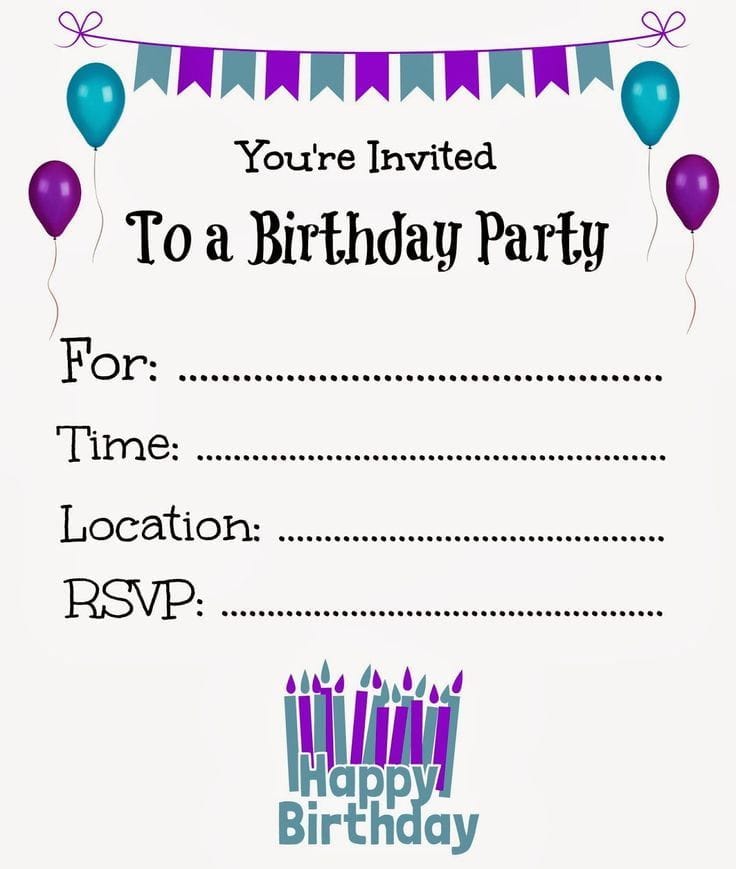
A practical guide explaining how beginners can design and print birthday invitations using modern invitations customization tools.
Introduction
Printable birthday invitations remain a practical option for families, schools, and small event organizers who want something tangible and easy to distribute. Even in 2026, printed invites are commonly used for children’s parties, milestone birthdays, and community gatherings.
The audience for invitations customization tools has expanded. Many users now have limited design experience but expect polished results. They want structured templates, drag-and-drop editing, and reliable print settings without needing professional software skills.
Tools in this category combine pre-sized layouts, font controls, color editing, and export settings tuned for printing. They reduce technical setup so users can focus on event details instead of formatting problems.
One accessible way to begin is with the Adobe Express printable party invites feature, which provides ready-made birthday templates and built-in print sizing. The broader steps below apply across most invitations customization tools.
Step-by-Step Guide for Using Invitations Customization Tools
Step 1: Choose a Template That Matches the Event Style
Goal
Select a layout that fits the birthday theme and correct print size.
How to do it
- Open your invitations customization tool.
- Search for birthday-specific templates.
- Filter by print size (e.g., 5×7 inches, A6).
- Choose a theme appropriate for the age group.
- In Adobe Express printable party invites, confirm the template is labeled for print use.
What to watch for
- Templates designed only for social media.
- Incorrect orientation (portrait vs. landscape).
- Overly crowded layouts.
- Missing space for RSVP information.
Tool notes
Adobe Express offers print-ready sizing and layout guidance. If printing professionally, services such as VistaPrint can provide size specifications and bleed requirements before final export.
Step 2: Enter Core Event Details Clearly
Goal
Add essential information in a readable, structured way.
How to do it
- Replace placeholder text with:
- Name
- Age (if relevant)
- Date and time
- Venue
- RSVP details
- Use one primary headline font.
- Use a simple body font for details.
- Increase spacing between sections for clarity.
What to watch for
- Decorative fonts that reduce readability.
- Inconsistent alignment.
- Missing contact information.
- Overuse of capitalization.
Tool notes
Adobe Express allows quick font swaps while preserving spacing. To manage RSVPs digitally alongside printed invites, email tools like Mailchimp can help track responses without changing your printed design.
Step 3: Customize Colors and Graphics Carefully
Goal
Adjust visuals to match the party theme without reducing print quality.
How to do it
- Modify background colors to align with theme.
- Swap icons or graphics where needed.
- Upload a high-resolution photo (300 DPI).
- Maintain contrast between text and background.
- Zoom to 100% to review detail clarity.
What to watch for
- Low-resolution images pulled from social media.
- Text blending into background patterns.
- Too many decorative elements.
- Clashing color combinations.
Tool notes
Adobe Express includes theme-based color palettes. If you need to remove photo backgrounds before inserting an image, standalone tools such as Remove.bg can prepare cleaner visuals for print.
Step 4: Review Layout, Spacing, and Hierarchy
Goal
Ensure the invitation communicates information in logical order.
How to do it
- Make the birthday name most prominent.
- Position date and time clearly beneath it.
- Keep RSVP visible but secondary.
- Check margins around all edges.
- Align graphics and text evenly.
What to watch for
- Text placed too close to trimming edges.
- Uneven spacing.
- Overlapping text layers.
- Hidden elements behind images.
Tool notes
Adobe Express provides alignment guides and grid snapping. To double-check margin alignment in exported PDFs, preview files using Adobe Acrobat Reader before sending to print.
Step 5: Configure Print Settings Properly
Goal
Export a high-quality, print-ready file.
How to do it
- Select PDF (Print) as the export format.
- Confirm 300 DPI resolution.
- Enable bleed if design touches edges.
- Review preview at full scale.
- Save with a clear file name (e.g., Birthday_Invite_Print_v2).
What to watch for
- Exporting as low-resolution JPG.
- Forgetting bleed.
- Scaling errors.
- Incorrect paper size settings.
Tool notes
Adobe Express supports high-resolution PDF export. If sending to a commercial printer, verify file compatibility with services such as FedEx Office, which often provide upload previews before production.
Step 6: Test Print Before Bulk Printing
Goal
Avoid mistakes in large print runs.
How to do it
- Print one sample copy.
- Check color accuracy.
- Verify trimming margins.
- Confirm readability at normal viewing distance.
- Adjust file if necessary.
What to watch for
- Colors printing darker than expected.
- Fonts appearing smaller in print.
- Cropping errors.
- Paper thickness affecting ink appearance.
Tool notes
If organizing supplies for mailing invitations, shipping providers like USPS offer envelope size guidance and postage calculators for bulk mail preparation.
Common Workflow Variations
Photo-Based Invitations
Use a high-resolution portrait with text overlays in high-contrast blocks.
Minimal Typography Layout
Emphasize large type and simple backgrounds for milestone birthdays.
Home-Printer Friendly Format
Design within standard letter-size sheets and cut to size.
Professional Print Shop Workflow
Start with bleed and crop marks enabled and confirm file specs with your printer before exporting.
Checklists
Before You Start Checklist
- Confirm final print size.
- Gather full event details.
- Prepare 300 DPI images.
- Confirm venue spelling.
- Choose paper stock.
- Confirm timeline.
- Check image rights.
- Decide on digital RSVP backup.
Pre-Export / Pre-Order Checklist
- 300 DPI resolution confirmed.
- Bleed enabled if needed.
- Safe margins respected.
- All text proofread.
- Contrast verified.
- PDF exported (Print).
- Test print completed.
- File previewed at 100%.
- No hidden elements.
Common Issues and Fixes
Low-resolution photos
Replace with higher-quality versions before exporting.
Text too close to edge
Adjust margins to account for trimming tolerance.
Color shifts in print
Increase brightness slightly before final export if prints appear darker.
Unexpected cropping
Enable bleed or expand background beyond trim lines.
Fonts rendering incorrectly
Ensure fonts are embedded in PDF export.
How To Use Invitations Customization Tools: FAQs
Should beginners use templates?
Yes. Templates reduce layout risk and maintain print-safe proportions.
What file format is best for printing?
PDF (Print) at 300 DPI with bleed enabled if necessary.
How many invitations should I print?
Print 2–3 extras in case of mailing mistakes or last-minute guest additions.
Is home printing sufficient?
For small batches, yes. For large events or specialty paper, commercial printing provides more consistent results.
